
Forward Email
Privacy-focused encrypted email for everyone. All-in-one alternative to Gmail + Mailchimp + Sendgrid.
Privacy-focused encrypted email for everyone. All-in-one alternative to Gmail + Mailchimp + Sendgrid.
<!-- 🐾 Rest in Peace, Jack (2014-2025) -->
<h1 align="center">
<a href="https://forwardemail.net"><img src="https://raw.githubusercontent.com/forwardemail/forwardemail.net/master/media/header.png" alt="ForwardEmail" /></a>
</h1>
<div align="center">
<a href="https://github.com/forwardemail/forwardemail.net/actions/workflows/ci.yml"><img src="https://github.com/forwardemail/forwardemail.net/actions/workflows/ci.yml/badge.svg" alt="build status" /></a>
<a href="https://github.com/sindresorhus/xo"><img src="https://img.shields.io/badge/code_style-XO-5ed9c7.svg" alt="code style" /></a>
<a href="https://github.com/prettier/prettier"><img src="https://img.shields.io/badge/styled_with-prettier-ff69b4.svg" alt="styled with prettier" /></a>
<a href="https://github.com/forwardemail/forwardemail.net/blob/master/LICENSE.md"><img src="https://img.shields.io/badge/license-BUSL_1.1_AND_MPL_2.0-blue" alt="license" /></a>
</div>
<br />
<div align="center">Forward Email is the 100% open-source and privacy-focused email service @ <a href="https://forwardemail.net">https://forwardemail.net</a>.</div>
<hr />
## Table of Contents
* [Stargazers over time](#stargazers-over-time)
* [How do I get started](#how-do-i-get-started)
* [For Consumers](#for-consumers)
* [For Developers](#for-developers)
* [Requirements](#requirements)
* [macOS](#macos)
* [Ubuntu](#ubuntu)
* [Local Development Guide](#local-development-guide)
* [Push Notifications](#push-notifications)
* [Server Infrastructure](#server-infrastructure)
* [Naming Convention](#naming-convention)
* [Load Balancing](#load-balancing)
* [Provisioning](#provisioning)
* [Deployment](#deployment)
* [Deployment Advice](#deployment-advice)
* [Bare Metal Advice](#bare-metal-advice)
* [Storage Mirroring](#storage-mirroring)
* [Automated Setup via Ansible](#automated-setup-via-ansible)
* [Environment Variables](#environment-variables)
* [Manual Verification](#manual-verification)
* [Email Autodiscovery](#email-autodiscovery)
* [Option A: CNAME Records (Recommended)](#option-a-cname-records-recommended)
* [Option B: SRV Records](#option-b-srv-records)
* [CalDAV and CardDAV Autodiscovery](#caldav-and-carddav-autodiscovery)
* [Domain Connect Integration](#domain-connect-integration)
* [How It Works](#how-it-works)
* [Template File](#template-file)
* [Template Variables](#template-variables)
* [Environment Variables](#environment-variables-1)
* [Generating and Publishing the Signing Key](#generating-and-publishing-the-signing-key)
* [References](#references)
* [License](#license)
## Stargazers over time
[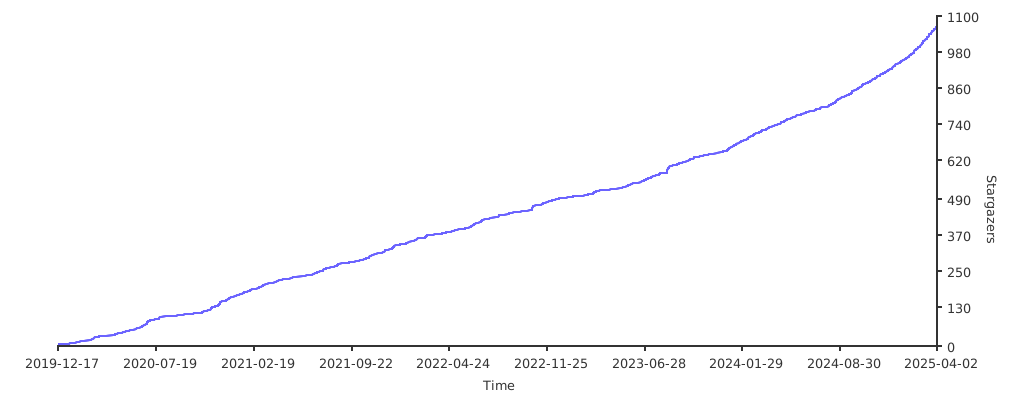](https://starchart.cc/forwardemail/forwardemail.net)
## How do I get started
### For Consumers
Visit <https://forwardemail.net> to get started!
### For Developers
See [Requirements](#requirements) and [Local Development Guide](#local-development-guide) below.
## Requirements
### macOS
1. Install [n][] and Node v18.20.4:
```sh
curl -L https://raw.githubusercontent.com/mklement0/n-install/stable/bin/n-install | bash -s -- -y 18.20.4
```
2. Ensure that you are running on Node v18.20.4:
```sh
node --version
v18.20.4
```
3. Install [brew][] and the following dependencies using `brew` command:
```sh
brew tap mongodb/brew
brew install mongodb-community redis libtool automake autoconf nasm
brew services start mongodb-community
brew services start redis
```
4. Install [pnpm][]:
```sh
corepack enable
corepack prepare pnpm@9.15.9 --activate
```
5. [Fork the repository from GitHub](https://github.com/forwardemail/forwardemail.net/fork)
6. Clone your fork locally (replace `forwardemail` with your username):
```sh
git clone git@github.com:forwardemail/forwardemail.net.git
cd forwardemail.net
```
7. Install [npm][] dependencies:
```sh
pnpm install
```
8. Install [wkhtmltopdf](https://wkhtmltopdf.org/downloads.html#stable) (**optional:** only used for generating PDF receipts)
### Ubuntu
1. Install [n][] and Node v18.20.4:
```sh
curl -L https://raw.githubusercontent.com/mklement0/n-install/stable/bin/n-install | bash -s -- -y 18.20.4
```
2. Ensure that you are running on Node v18.20.4:
```sh
node --version
v18.20.4
```
3. Install [pnpm][]:
```sh
corepack enable
corepack prepare pnpm@9.15.9 --activate
```
4. [Fork the repository from GitHub](https://github.com/forwardemail/forwardemail.net/fork)
5. Clone your fork locally (replace `forwardemail` with your username):
```sh
git clone git@github.com:forwardemail/forwardemail.net.git
cd forwardemail.net
```
6. Install [npm][] dependencies:
```sh
pnpm install
```
7. Install fonts:
```sh
echo ttf-mscorefonts-installer msttcorefonts/accepted-mscorefonts-eula select true | sudo debconf-set-selections
```
```sh
sudo apt-get install xfonts-75dpi fontconfig libxrender1 xfonts-base ttf-mscorefonts-installer libfontconfig fonts-powerline
```
8. Install [wkhtmltopdf](https://wkhtmltopdf.org/downloads.html#stable) (**optional:** only used for generating PDF receipts):
```sh
wget "https://github.com/wkhtmltopdf/packaging/releases/download/0.12.6.1-2/wkhtmltox_0.12.6.1-2.$(lsb_release -c -s)_$(dpkg --print-architecture).deb"
sudo dpkg -i "wkhtmltox_0.12.6.1-2.$(lsb_release -c -s)_$(dpkg --print-architecture).deb"
```
9. Install MongoDB by following the guide at <https://www.mongodb.com/docs/manual/tutorial/install-mongodb-on-ubuntu/#install-mongodb-community-edition>
10. Install Redis by following the guide at <https://www.digitalocean.com/community/tutorials/how-to-install-and-secure-redis-on-ubuntu-20-04>.
## Local Development Guide
Once you have followed [Requirements](#requirements), you should now have all the dependencies, repository, and npm packages installed.
You can start any of the services using our pre-built commands to make it easy. Note that all of these pre-built commands are using [nps](https://github.com/sezna/nps).
| Service Name | Command | Default Development Port | Development Preview URL |
| ------------ | ------------------- | :----------------------: | ----------------------- |
| Web | `npm start web` | `3000` | <http://localhost:3000> |
| API | `npm start api` | `4000` | <http://localhost:4000> |
| Bree | `npm start bree` | None | None |
| SMTP | `npm start smtp` | `2432` | `telnet localhost 2432` |
| MX | `npm start mx` | `2525` | `telnet localhost 2525` |
| IMAP | `npm start imap` | `2113` | `telnet localhost 2113` |
| POP3 | `npm start pop3` | `2115` | `telnet localhost 2115` |
| SQLite | `npm start sqlite` | `3456` | `telnet localhost 3456` |
| CalDAV | `npm start caldav` | `5000` | <http://localhost:5000> |
| CardDAV | `npm start carddav` | `6000` | <http://localhost:6000> |
You can test the local SMTP, IMAP, POP3, CalDAV, CardDAV servers using [Thunderbird](), `telnet`, or `openssl`. Note that all local development servers do not require TLS and are running with `{ rejectUnauthorized: true }` option passed to TLS server configurations.
Try running the local web server:
```sh
npm start webAndWatch
```
It should open a new tab for you with the local web server running and terminal output using [consola](https://github.com/unjs/consola). You can now open your browser to <http://localhost:3000> for a development playground.
**You can also run all apps at once:**
```sh
npm start all
```
Note that if you open your browser to <http://localhost:3000> and no assets are rendering, then you must have forgotten to run a build beforehand. You can run builds manually by running `npm run build`.
An easy way to kill all existing Node apps running is by typing `killall node`.
## Push Notifications
Backend provisioning for APNs, FCM HTTP v1, and UnifiedPush is documented in [`PUSH_NOTIFICATIONS.md`](PUSH_NOTIFICATIONS.md). The guide explains how to obtain every environment value, deploy file-based credentials, copy the required public values to [`mail.forwardemail.net`](https://github.com/forwardemail/mail.forwardemail.net), and validate the completed setup.
APNs reuses the existing `APPLE_TEAM_ID`, `APPLE_KEY_ID`, and `APPLE_KEY_PATH` values used for Sign in with Apple. Do not create separate APNs-specific credential variables.
## Server Infrastructure
### Naming Convention
Our server alias naming convention consists of the following fields, joined together by a hyphen, and converted to lower case:
1. App name (e.g. "web", "api", "bree", "smtp", "imap", "pop3", "sqlite", "caldav", or "carddav")
2. (Optional) App count (starting with 1) of the application (relative to the same provider and region). Only applicable for apps with potential count > 1.
3. Provider name (abbreviated to 2 characters, e.g. "do" for "Digital Ocean", but you can optionally use more verbose for providers such as "DataPacket" as "dp")
4. Region name (this is the region name given by the provider, e.g. "sfo3" for DO's SFO3 region)
For example, one of our web servers is named `web-dp-dv-co` (for Web > DataPacket > Denver > Colorado).
### Load Balancing
All server aliases with the same hostname (with a minimum count of at least 2) are set in Cloudflare under a geo-located load balancer.
Unless otherwise noted, all of the servers should have dedicated CPU's and not be running in a shared CPU environment.
### Provisioning
See the [ansible](ansible/) folder for our [Ansible][] configuration and playbooks, which we use to provision servers with.
We recommend you to install [yamllint][] and configure it in your editor while working with [Ansible][] playbooks.
Also note that [ansible-lint][] is a helpful linting tool you can use if you plan on making changes to playbooks. Note that our current playbooks have several existing lint errors.
First you must provision Ubuntu 18.04 LTS 64-bit server(s) using [Digital Ocean][digital-ocean], [Linode][], [Vultr][], or your host of choice. These newly provisioned server(s) should have your SSH key automatically added.
Follow the [Deployment](#deployment) guide below for automatic provisioning and deployment instructions.
### Deployment
1. Ensure that you have [pm2][] installed locally:
```sh
npm i -g pm2
```
2. Ensure that you have [ansible](https://docs.ansible.com/ansible/latest/installation_guide/installation_distros.html) and [ansible-lint](https://ansible.readthedocs.io/projects/lint/installing/) installed locally:
> For macOS:
```sh
brew install ansible ansible-lint
```
> For Ubuntu:
```sh
sudo apt-add-repository ppa:ansible/ansible
sudo apt update
sudo apt install ansible
pip3 install ansible-lint
```
3. Install [ansible-galaxy][] requirements (assumes current working directory is the root of this repository):
```sh
ansible-galaxy install -r ansible/requirements.yml
```
4. Set up host configuration by copying the `hosts.yml` file template:
```sh
cp ansible/playbooks/templates/hosts.yml hosts.yml
```
5. Edit this configuration and update the file with your newly created server aliases and IP addresses. You can add more than one host to each group if you are setting up load balancing. Refer to the [Naming Convention](#naming-convention) documentation for our recommended approach to server alias naming. Note that this file is automatically ignored by git. If you have a private repository and would like to commit this, then remove `hosts.yml` from the root `.gitignore` file.
```sh
vim hosts.yml
```
6. Set up environment configuration by copying the `env` file template:
```sh
cp ansible/playbooks/templates/env .env.production
```
7. Edit this configuration and reference the official [Lad][] documentation for a list of all available environment variables (or see [.env.defaults](.env.defaults)). **You will need to open this file in your preferred editor** and set the values for any fields containing `TODO`, whereby you replace `TODO` with the appropriate value. Preserve double quotes where they are already defined. In production, set `API_SECRETS` to at least one secret with 32 or more bytes, for example `openssl rand -hex 32`; the application rejects blank, short, and predictable defaults.
```sh
vim .env.production
```
8. Generate [pm2][] [ecosystem files][ecosystem-files] using our automatic template generator. We created an [ansible-playbook.js](ansible-playbook.js) which loads the `.env.production` environment variables rendered with [@ladjs/env][] into `process.env`, which then gets used in the playbooks. This is a superior, simple, and the only known dotenv approach we know of in Ansible. Newly created `ecosystem-api.json`, `ecosystem-bree.json`, `ecosystem-web.json`, `ecosystem-smtp.json`, `ecosystem-imap.json`, `ecosystem-pop3.json`, `ecosystem-sqlite.json`, `ecosystem-caldav.json`, and `ecosystem-carddav.json` files will now be created for you in the root of the repository. If you ever more add or change IP addresses, you can simply re-run this command.
```sh
node ansible-playbook ansible/playbooks/ecosystem.yml -l 'localhost'
```
9. Set up the web, API, CalDAV, and CardDAV server(s) (see [patterns and ansible-playbook flags docs](https://docs.ansible.com/ansible/latest/user_guide/intro_patterns.html#patterns-and-ansible-playbook-flags) if you need help). If you completely (or partially) run this playbook (or any others below), then the second time you try to run it may not succeed. This is because we prevent root user access through security hardening. To workaround this, run the same command but without `--user root` appended as it will default to the `devops` user created.
```sh
node ansible-playbook ansible/playbooks/http.yml --user root -l 'http'
```
10. Set up the Bree server(s):
```sh
node ansible-playbook ansible/playbooks/bree.yml --user root -l 'bree'
```
11. Set up the SMTP server(s):
```sh
node ansible-playbook ansible/playbooks/smtp.yml --user root -l 'smtp'
```
12. Set up the IMAP server(s):
```sh
node ansible-playbook ansible/playbooks/imap.yml --user root -l 'imap'
```
13. Set up the POP3 server(s):
```sh
node ansible-playbook ansible/playbooks/pop3.yml --user root -l 'pop3'
```
14. Set up the SQLite server(s):
```sh
node ansible-playbook ansible/playbooks/sqlite.yml --user root -l 'sqlite'
```
15. Set up the MX server(s):
```sh
node ansible-playbook ansible/playbooks/mx1.yml --user root -l 'mx1'
node ansible-playbook ansible/playbooks/mx2.yml --user root -l 'mx2'
```
16. Set up GitHub deployment keys for all the servers. Note that the `deployment-keys` directory is ignored from git, so if you have a private repository and wish to commit it, then remove `deployment-keys` from the `.gitignore` file.
```sh
node ansible-playbook ansible/playbooks/deployment-keys.yml -l 'imap:pop3:smtp:http:bree:sqlite:mx1:mx2' --user deploy
```
17. Go to your repository "Settings" page on GitHub, click on "Deploy keys", and then add a deployment key for each servers' deployment key copied to the `deployment-keys` directory. If you're on macOS, you can use the `pbcopy` command to copy each file's contents to your clipboard. Use tab completion for speed, and replace the server names and paths with yours. You can also use the `gh` CLI at <https://cli.github.com/manual/gh_repo_deploy-key_add> as shown below (switch the repo/org/repo paths and deployment key paths below to yours):
```sh
gh repo deploy-key add deployment-keys/api-vu-sj-ca.pub -R forwardemail/forwardemail.net
gh repo deploy-key add deployment-keys/api-dp-dv-co.pub -R forwardemail/forwardemail.net
gh repo deploy-key add deployment-keys/web-dp-dv-co.pub -R forwardemail/forwardemail.net
gh repo deploy-key add deployment-keys/web-vu-sj-ca.pub -R forwardemail/forwardemail.net
gh repo deploy-key add deployment-keys/bree-vu-sj-ca.pub -R forwardemail/forwardemail.net
gh repo deploy-key add deployment-keys/bree-dp-dv-co.pub -R forwardemail/forwardemail.net
gh repo deploy-key add deployment-keys/smtp-vu-sj-ca.pub -R forwardemail/forwardemail.net
gh repo deploy-key add deployment-keys/smtp-dp-dv-co-1.pub -R forwardemail/forwardemail.net
gh repo deploy-key add deployment-keys/smtp-dp-dv-co-2.pub -R forwardemail/forwardemail.net
gh repo deploy-key add deployment-keys/imap-dp-dv-co.pub -R forwardemail/forwardemail.net
gh repo deploy-key add deployment-keys/pop3-vu-sj-ca.pub -R forwardemail/forwardemail.net
gh repo deploy-key add deployment-keys/pop3-dp-dv-co.pub -R forwardemail/forwardemail.net
gh repo deploy-key add deployment-keys/sqlite-dp-dv-co.pub -R forwardemail/forwardemail.net
gh repo deploy-key add deployment-keys/caldav-dp-dv-co.pub -R forwardemail/forwardemail.net
gh repo deploy-key add deployment-keys/carddav-dp-dv-co.pub -R forwardemail/forwardemail.net
gh repo deploy-key add deployment-keys/mx1-dp-dv-co.pub -R forwardemail/forwardemail.net
gh repo deploy-key add deployment-keys/mx2-dp-dv-co.pub -R forwardemail/forwardemail.net
```
18. Set up PM2 deployment directories on all the servers:
```sh
pm2 deploy ecosystem-web.json production setup
```
```sh
pm2 deploy ecosystem-api.json production setup
```
```sh
pm2 deploy ecosystem-bree.json production setup
```
```sh
pm2 deploy ecosystem-smtp.json production setup
```
```sh
pm2 deploy ecosystem-imap.json production setup
```
```sh
pm2 deploy ecosystem-pop3.json production setup
```
```sh
pm2 deploy ecosystem-sqlite.json production setup
```
```sh
pm2 deploy ecosystem-caldav.json production setup
```
```sh
pm2 deploy ecosystem-carddav.json production setup
```
```sh
pm2 deploy ecosystem-mx.json production setup
```
19. Create a SSL certificate at [Namecheap][] (we recommend a 5 year wildcard certificate), set up the certificate, and download and extract the ZIP file with the certificate (emailed to you) to your computer. We do not recommend using tools like [LetsEncrypt][] and `certbot` due to complexity when you have (or scale to) a cluster of servers set up behind load balancers. In other words, we've tried approaches like `lsyncd` in combination with `crontab` for `certbot` renewals and automatic checking. Furthermore, using this exposes the server(s) to downtime as ports `80` and `443` may need to be shut down so that `certbot` can use them for certificate generation. This is not a reliable approach, and simply renewing certificates once a year is vastly simpler and also makes using load balancers trivial. Instead you can use a provider like [Namecheap][] to get a cheap SSL certificate, then run a few commands as we've documented below. This command will prompt you for an absolute file path to the certificates you downloaded. Renewed your certificate after 1 year? Simply follow this step again. Do not set a password on the certificate files. When using the `openssl` command (see Namecheap instructions), you need to use `*.example.com` with an asterisk followed by a period if you are registering a wildcard certificate.
> **CRITICAL — Update DANE/TLSA DNS records BEFORE deploying new certificates:**
>
> If your MX servers publish TLSA records (DANE), you **must** update the TLSA DNS records
> to include the new certificate's public key hash **before** deploying the new certificate
> to the servers. Failure to do so will cause DANE-aware senders (including your own SMTP
> outbound) to reject connections with:
>
> ```
> DANE verification failed: Certificate did not match any TLSA record
> ```
>
> This will result in **all email delivery failing** to your MX servers until the TLSA
> records are corrected.
>
> **Step 1: Generate the TLSA hash from the NEW certificate (before deploying it):**
>
> ```sh
> # Extract the SPKI SHA-256 hash (TLSA usage 3, selector 1, matching type 1)
> openssl x509 -in /path/to/new/.ssl-cert -pubkey -noout \
> | openssl pkey -pubin -outform DER \
> | openssl dgst -sha256 -binary \
> | xxd -p -c 32
> ```
>
> **Step 2: Update TLSA DNS records for ALL services:**
>
> Add or update the following DNS records with the hash from Step 1. All records use
> DANE-EE (usage=3), SPKI (selector=1), SHA-256 (matching\_type=1):
>
> | Record Name | Service |
> | ------------------------------------ | -------------------------- |
> | `_25._tcp.mx1.forwardemail.net` | MX1 inbound SMTP |
> | `_25._tcp.mx2.forwardemail.net` | MX2 inbound SMTP |
> | `_25._tcp.smtp.forwardemail.net` | SMTP port 25 |
> | `_465._tcp.smtp.forwardemail.net` | SMTPS (implicit TLS) |
> | `_587._tcp.smtp.forwardemail.net` | SMTP submission (STARTTLS) |
> | `_2465._tcp.smtp.forwardemail.net` | SMTPS alt port |
> | `_2525._tcp.smtp.forwardemail.net` | SMTP alt port |
> | `_2587._tcp.smtp.forwardemail.net` | Submission alt port |
> | `_3025._tcp.mx1.forwardemail.net` | MX1 alt port |
> | `_3025._tcp.mx2.forwardemail.net` | MX2 alt port |
> | `_993._tcp.imap.forwardemail.net` | IMAPS |
> | `_2993._tcp.imap.forwardemail.net` | IMAP alt port |
> | `_995._tcp.pop3.forwardemail.net` | POP3S |
> | `_2995._tcp.pop3.forwardemail.net` | POP3 alt port |
> | `_443._tcp.forwardemail.net` | Web HTTPS |
> | `_443._tcp.api.forwardemail.net` | API HTTPS |
> | `_443._tcp.caldav.forwardemail.net` | CalDAV HTTPS |
> | `_443._tcp.carddav.forwardemail.net` | CardDAV HTTPS |
> | `_80._tcp.forwardemail.net` | Web HTTP |
> | `_80._tcp.api.forwardemail.net` | API HTTP |
> | `_80._tcp.caldav.forwardemail.net` | CalDAV HTTP |
> | `_80._tcp.carddav.forwardemail.net` | CardDAV HTTP |
>
> **Cloudflare API one-liner to create all TLSA records with a new hash:**
>
> ```sh
> # Set your Cloudflare credentials and the new TLSA hash
> export CF_API_TOKEN="your-cloudflare-api-token"
> export CF_ZONE_ID="your-zone-id"
> export TLSA_HASH="<hash-from-step-1>"
>
> # Create all 22 TLSA records in one shot
> for name in \
> _25._tcp.mx1.forwardemail.net \
> _25._tcp.mx2.forwardemail.net \
> _25._tcp.smtp.forwardemail.net \
> _465._tcp.smtp.forwardemail.net \
> _587._tcp.smtp.forwardemail.net \
> _2465._tcp.smtp.forwardemail.net \
> _2525._tcp.smtp.forwardemail.net \
> _2587._tcp.smtp.forwardemail.net \
> _3025._tcp.mx1.forwardemail.net \
> _3025._tcp.mx2.forwardemail.net \
> _993._tcp.imap.forwardemail.net \
> _2993._tcp.imap.forwardemail.net \
> _995._tcp.pop3.forwardemail.net \
> _2995._tcp.pop3.forwardemail.net \
> _443._tcp.forwardemail.net \
> _443._tcp.api.forwardemail.net \
> _443._tcp.caldav.forwardemail.net \
> _443._tcp.carddav.forwardemail.net \
> _80._tcp.forwardemail.net \
> _80._tcp.api.forwardemail.net \
> _80._tcp.caldav.forwardemail.net \
> _80._tcp.carddav.forwardemail.net; do
> curl -sS -X POST "https://api.cloudflare.com/client/v4/zones/${CF_ZONE_ID}/dns_records" \
> -H "Authorization: Bearer ${CF_API_TOKEN}" \
> -H "Content-Type: application/json" \
> -d "{\"type\":\"TLSA\",\"name\":\"${name}\",\"data\":{\"usage\":3,\"selector\":1,\"matching_type\":1,\"certificate\":\"${TLSA_HASH}\"},\"ttl\":1}" \
> | jq -r '"[" + (if .success then "OK" else "FAIL" end) + "] " + .result.name // .errors[0].message'
> done
> ```
>
> **Cloudflare API one-liner to delete old TLSA records by hash (after grace period):**
>
> ```sh
> # Set your Cloudflare credentials and the OLD hash to remove
> export CF_API_TOKEN="your-cloudflare-api-token"
> export CF_ZONE_ID="your-zone-id"
> export OLD_HASH="<old-hash-to-remove>"
>
> # Find and delete all TLSA records matching the old hash
> curl -sS "https://api.cloudflare.com/client/v4/zones/${CF_ZONE_ID}/dns_records?type=TLSA&per_page=100" \
> -H "Authorization: Bearer ${CF_API_TOKEN}" \
> | jq -r ".result[] | select(.data.certificate == \"${OLD_HASH}\") | .id" \
> | while read -r id; do
> curl -sS -X DELETE "https://api.cloudflare.com/client/v4/zones/${CF_ZONE_ID}/dns_records/${id}" \
> -H "Authorization: Bearer ${CF_API_TOKEN}" \
> | jq -r '"Deleted: " + .result.id'
> done
> ```
>
> **Step 3: Wait for DNS propagation:**
>
> ```sh
> # Verify the new TLSA record is visible
> dig +short TLSA _25._tcp.mx1.example.com
> dig +short TLSA _25._tcp.mx2.example.com
> ```
>
> Wait until the new hash appears in DNS responses. If your TTL is high, you may want to
> lower it in advance or publish both the old and new TLSA records simultaneously during
> the transition window.
>
> **Step 4: (Optional) Publish both old and new TLSA records during rollover:**
>
> To avoid any downtime window, publish **both** the current and new TLSA records before
> deploying. After deployment and verification, remove the old record:
>
> ```sh
> # Verify the deployed certificate matches the new TLSA record
> echo | openssl s_client -starttls smtp -connect mx1.example.com:25 2>/dev/null \
> | openssl x509 -pubkey -noout \
> | openssl pkey -pubin -outform DER \
> | openssl dgst -sha256 -binary \
> | xxd -p -c 32
> ```
>
> **Step 5: Only AFTER TLSA records are propagated, deploy the certificate:**
```sh
node ansible-playbook ansible/playbooks/certificates.yml --user deploy
```
The [Ansible](https://github.com/ansible/ansible) playbook also prompts for optional local paths to the shared Apple `AuthKey_*.p8` file and Firebase service-account JSON. Each supplied credential is validated and copied with mode `0660` into `/var/www/production`: the Apple key keeps its local basename, while the Firebase credential is installed as `firebase-service-account.json`. Set `APPLE_KEY_PATH` to the deployed Apple key path and use `FCM_SERVICE_ACCOUNT_PATH=/var/www/production/firebase-service-account.json`. See [`PUSH_NOTIFICATIONS.md`](PUSH_NOTIFICATIONS.md) for acquisition and validation steps.
> **Important:** If you renew or change certificates in the future, then after running the previous command, you will subsequently need to reload the processes as such:
```sh
#
# NOTE: See the "Important" note above BEFORE running this command.
# This command ONLY APPLIES for certificate renewals/changes.
#
pm2 deploy ecosystem-web.json production exec "pm2 reload all"
pm2 deploy ecosystem-api.json production exec "pm2 reload all"
pm2 deploy ecosystem-smtp.json production exec "pm2 reload all"
pm2 deploy ecosystem-imap.json production exec "pm2 reload all"
pm2 deploy ecosystem-pop3.json production exec "pm2 reload all"
pm2 deploy ecosystem-sqlite.json production exec "pm2 reload all"
pm2 deploy ecosystem-caldav.json production exec "pm2 reload all"
pm2 deploy ecosystem-carddav.json production exec "pm2 reload all"
pm2 deploy ecosystem-mx.json production exec "pm2 reload all"
```
> **Post-deployment verification:**
>
> ```sh
> # Confirm DANE verification passes for your MX servers
> echo | openssl s_client -starttls smtp -connect mx1.example.com:25 -dane_tlsa_domain mx1.example.com \
> -dane_tlsa_rrdata "3 1 1 <hash-from-step-1>" 2>&1 | grep -i "verification"
> ```
20. Create a DKIM key for your domain name (must match `WEB_HOST` environment variable) with a default selector of `default` (must match `DKIM_KEY_SELECTOR` environment variable). Then upload it to the servers:
```sh
node ansible-playbook ansible/playbooks/dkim.yml --user deploy
```
21. (Optional) Create a Google application credentials profile file and store it locally. You only need this if you want to support automatic translation. The following command will prompt you for the absolute file path (e.g. `/path/to/client-profile.json`). See the [mandarin][] docs for more information.
```sh
node ansible-playbook ansible/playbooks/gapp-creds.yml --user deploy
```
22. (Optional) Copy over custom TTF or OTF fonts to be installed on the server (e.g. used for PDF rendering, rendering with Sharp, open-graph images, etc):
```sh
node ansible-playbook ansible/playbooks/fonts.yml --user deploy
```
Note that at the time of this writing we copy these files:
* `inconsolata-dz.otf`
* `VCHoney-Bold.otf`
* `VCHoney-Regular.otf`
* `VCHoney-SemiBold.otf`
23. (Optional) Copy over GPG keys to be installed on the server (e.g. used for GPG signing `security.txt`, see <https://forwardemail.net/security.txt>).
> **NOTE:** This assumes that you have also set in `.env` file the keys of `GPG_SECURITY_KEY` with the full file path to the key *and* `GPG_SECURITY_PASSPHRASE` with the GPG passphrase. You can export via `gpg --armor --export-secret-key YOURKEYIDHERE > .gpg-security-key`. You can get `YOURKEYIDHERE` via `gpg --list-keys`. You can generate a key with `gpg --full-generate-key` (e.g. for `support@yourdomain.com` or `security@yourdomain.com`). Note you should also update the path in `config/index.js` for `openPGPKey` value.
```sh
node ansible-playbook ansible/playbooks/gpg-security-key.yml --user deploy
```
24. Copy the `.env.production` to the servers:
```sh
node ansible-playbook ansible/playbooks/env.yml --user deploy
```
25. Run an initial deploy to all the servers:
```sh
pm2 deploy ecosystem-web.json production
```
```sh
pm2 deploy ecosystem-api.json production
```
```sh
pm2 deploy ecosystem-bree.json production
```
```sh
pm2 deploy ecosystem-smtp.json production
```
```sh
pm2 deploy ecosystem-imap.json production
```
```sh
pm2 deploy ecosystem-pop3.json production
```
```sh
pm2 deploy ecosystem-sqlite.json production
```
```sh
pm2 deploy ecosystem-caldav.json production
```
```sh
pm2 deploy ecosystem-carddav.json production
```
```sh
pm2 deploy ecosystem-mx.json production
```
26. Save the process list on the servers so when if the server were to reboot, it will automatically boot back up the processes:
```sh
pm2 deploy ecosystem-web.json production exec "pm2 save"
```
```sh
pm2 deploy ecosystem-api.json production exec "pm2 save"
```
```sh
pm2 deploy ecosystem-bree.json production exec "pm2 save"
```
```sh
pm2 deploy ecosystem-smtp.json production exec "pm2 save"
```
```sh
pm2 deploy ecosystem-imap.json production exec "pm2 save"
```
```sh
pm2 deploy ecosystem-pop3.json production exec "pm2 save"
```
```sh
pm2 deploy ecosystem-sqlite.json production exec "pm2 save"
```
```sh
pm2 deploy ecosystem-caldav.json production exec "pm2 save"
```
```sh
pm2 deploy ecosystem-carddav.json production exec "pm2 save"
```
```sh
pm2 deploy ecosystem-mx.json production exec "pm2 save"
```
27. Test by visiting your web and API server in your browser (click "proceed to unsafe" site and bypass certificate warning).
28. Configure your DNS records for the web and API server hostnames and respective IP addresses.
29. Test by visiting your web and API server in your browser (in an incognito window). There should not be any certificate warnings (similar to the one that occurred in step 15).
30. (Optional) Remove the local `.env.production` file for security purposes. If you do this, then make sure you have a backup, or securely back up off the server in the future before destroying the server.
```sh
rm .env.production
```
31. (Optional) Remove the local certificate files you downloaded locally and specified in step 11. If you do this, then make sure you have a backup, or securely back up off the server in the future before destroying the server.
32. Finished. If you need to deploy again, then push your changes to GitHub `master` branch and then follow step 14 again. We recommend you to read the [Ansible getting started guide][ansible-guide], as it provides you with insight into commands like `ansible all -a "echo hello"` which can be run across all or specific servers.
## Deployment Advice
If you do not change any assets, then there is no reason to do a full deployment.
For example, if you made changes to a web controller, then you only need to deploy it to the web codebase without a build:
```sh
pm2 deploy ecosystem-web.json production exec "git reset --hard HEAD && git pull origin master && pm2 reload all"
```
## Bare Metal Advice
To set up initial servers, you may need to append the flag `--` to the scripts above, for example:
```sh
node ansible-playbook ansible/playbooks/mx2.yml --user ubuntu -l 'mx2' --ask-become-pass
```
If you are provisioning servers after IPMI/VPN access, then you may need to take these additional steps:
1. Remove the `ubuntu` (or other named) default user created during ISO installation:
```sh
sudo deluser --remove-home ubuntu
```
2. Resize the disk partition to 100%:
```sh
df -h
sudo lvdisplay
sudo lvextend -l +100%FREE /dev/ubuntu-vg/ubuntu-lv
sudo resize2fs /dev/mapper/ubuntu--vg-ubuntu--lv
df -h
```
3. Setup `crypttab` for auto-mount of LUKS encrypted root volume:
> **Important:** if you have multiple LUKS devices you cannot use these steps below.
> Instead you will need to modify the one-liner commands below to specifically replace UUID value.
> This guide only accounts for one LUKS encrypted volume (e.g. use `sudo blkid | grep "crypto_LUKS"` or [refer to this guide](https://www.golinuxcloud.com/mount-luks-encrypted-disk-partition-linux/) to determine your values).
> Run the following commands individually:
```sh
sudo mkdir /etc/luks
sudo dd if=/dev/urandom of=/etc/luks/root.keyfile bs=4096 count=1
sudo chmod 700 /etc/luks
sudo chmod 400 /etc/luks/root.keyfile
sudo cryptsetup luksAddKey $(sudo blkid | grep "crypto_LUKS" | cut -d ':' -f 1 | head -n 1) /etc/luks/root.keyfile
echo "KEYFILE_PATTERN=/etc/luks/*.keyfile" | sudo tee -a /etc/cryptsetup-initramfs/conf-hook
echo "UMASK=0077" | sudo tee -a /etc/initramfs-tools/initramfs.conf
sudo sed -i '/dm_crypt-0/d' /etc/crypttab
echo "dm_crypt-0 UUID=$(sudo blkid | grep "crypto_LUKS" | cut -d '"' -f 2 | head -n 1) /etc/luks/root.keyfile luks,discard" | sudo tee -a /etc/crypttab > /dev/null
```
```sh
sudo vim /etc/initramfs-tools/hooks/cryptroot
```
```diff
+#!/bin/sh
+cp /etc/crypttab "${DESTDIR}/cryptroot/crypttab"
+sed -i 's/\/etc\/luks\/root\.keyfile/\/cryptroot\/keyfiles\/dm_crypt-0\.key/' "${DESTDIR}/cryptroot/crypttab"
+exit 0
```
```sh
sudo chmod +x /etc/initramfs-tools/hooks/cryptroot
sudo update-initramfs -c -k all
```
> **NOTE:** THE REST OF THIS STEP IS NOT MEANT TO BE COPIED/PASTED, IT IS A SECTION DEDICATED FOR DEBUGGING:
If you get sent to a `BusyBox` shell on reboot, then something in your configuration is wrong.
Fortunately you can regain access by running the following command ([source](https://unix.stackexchange.com/questions/708445/etc-crypttab-not-updating-in-initramfs#:\~:text=I%20was%20able%20to%20successfully%20boot%20the%20system%20again%20by%20entering%20the%20following%20commands%20at%20the%20BusyBox%20prompt%3A)):
Note that the path to `/dev/nvme0n1p3` will instead be the path to your device in `/dev` that uses LUKS encryption for mounting as the root volume (in our case it's a NVMe SSD, hence `nvme` in the name).
```sh
sudo cryptsetup luksOpen /dev/nvme0n1p3 dm_crypt-0
exit
```
Additionally, you can inspect your `initrd` image (the generated file from `sudo update-initramfs -c -k all`) using these commands ([source](https://unix.stackexchange.com/a/767065)):
```sh
sudo update-initramfs -c -k all
```
```sh
sudo -i
rm -rf /tmp/x
mkdir /tmp/x
cd /tmp/x
unmkinitramfs -v /boot/initrd.img-$(uname -r) .
cd /tmp/x/main/cryptroot/crypttab
ll
```
4. If you need to configure IPv6 on your server, here is an example network config:
```sh
sudo touch /etc/cloud/cloud-init.disabled
```
```sh
sudo vim /etc/netplan/99-custom-netcfg.yaml
```
> Replace `IPV4_GOES_HERE` with IPv4 address, `IPV6_GOES_HERE` with IPv6 address, `IPV6_GATEWAY` with IPv6 gateway, and `IPV4_GATEWAY` with IPV4 gateway:
> For a comparison of `802.3ad` and other parameter mode values such as `balance-rr`, [please see this article on ServerFault](https://serverfault.com/a/481271).
> You may need to remove or change the `transmit-hash-policy` as well for your configuration.
> You will also need to update `enp1s0f0np0` and `enp1s0f1np1` with your network interface names from `ip link show`.
```sh
# This is the network config written by 'subiquity'
network:
version: 2
ethernets:
enp1s0f0np0:
dhcp4: false
dhcp6: false
enp1s0f1np1:
dhcp4: false
dhcp6: false
bonds:
bond0:
addresses:
- IPV4_ADDRESS_HERE/24
- IPV6_ADDRESS_HERE/64
interfaces:
- enp1s0f0np0
- enp1s0f1np1
nameservers:
addresses:
- 1.1.1.1
- 2606:4700:4700::1111
- 1.0.0.1
- 2606:4700:4700::1001
- 8.8.8.8
- 2001:4860:4860::8888
- 8.8.4.4
- 2001:4860:4860::8844
search: []
parameters:
mode: 802.3ad
transmit-hash-policy: layer3+4
routes:
- to: ::/0
via: IPV6_GATEWAY_HERE
- to: default
via: IPV4_GATEWAY_HERE
```
```sh
sudo rm /etc/netplan/50-cloud-init.yaml
sudo chmod 600 /etc/netplan/99-custom-netcfg.yaml
```
Run a test to ensure the YAML syntax is correct:
```sh
sudo netplan try
```
If there are no errors, apply the configuration permanently:
```sh
sudo netplan apply
```
To check the IP addresses and status of `bond0`:
```sh
ip a show bond0
```
To inspect the status of a bond and its member interfaces:
```sh
cat /proc/net/bonding/bond0
```
5. If you need to encrypt and auto-mount a disk, e.g. NVMe SSD drive at `/mnt/storage_do_1` for SQLite (`SQLITE_STORAGE_PATH`; see `helpers/get-path-to-database.js`):
1. Get partition name:
```sh
lsblk
```
2. Encrypt partition with LUKS:
> **NOTE:** Do not use `aes-xts-plain` – instead you should use `aes-xts-plain64` as shown below – this is because `aes-xts-plain` has limitations on larger containers over 2 TiB and does not offer the same protection as `aes-xts-plain64`.
> **NOTE:** Replace `nvme1n1` with the name of the unencrypted partition shown in step 1:
```sh
mkdir -p /etc/luks-keys
sudo touch /etc/luks-keys/key.key
sudo chmod 400 /etc/luks-keys/key.key
sudo dd if=/dev/urandom of=/etc/luks-keys/key.key bs=4096 count=1
sudo cryptsetup --cipher aes-xts-plain64 --key-file=/etc/luks-keys/key.key --key-size 512 --hash sha512 -v luksFormat /dev/nvme1n1 --batch-mode
```
3. Open the partition:
> **NOTE:** Replace `nvme1n1` with the name of the unencrypted partition shown in step 1:
```sh
sudo cryptsetup -v --key-file=/etc/luks-keys/key.key luksOpen /dev/nvme1n1 nvme1n1
```
4. Get UUID of storage device:
```sh
sudo cryptsetup luksDump /dev/nvme1n1 | grep UUID | sed -e "s/UUID: //" | sed 's/^[[:space:]]*//;s/[[:space:]]*$//'
```
> **NOTE:** This will output a UUID value such as the following, which you need to use later:
```sh
f0f59f79-f8f8-4a39-8dd7-a04ccc5e50a3
```
5. Add to `/etc/crypttab`:
> **NOTE:** Replace `nvme1n1` with the name of the unencrypted partition shown in step 1:
> **NOTE:** Replace the `UUID` value with the value output from above.
```sh
echo "nvme1n1 UUID=f0f59f79-f8f8-4a39-8dd7-a04ccc5e50a3 /etc/luks-keys/key.key luks" | sudo tee -a /etc/crypttab
```
6. Initialize mapper:
> **NOTE:** Replace `nvme1n1` with the name of the unencrypted partition shown in step 1:
```sh
sudo cryptdisks_start nvme1n1
```
7. Create partition:
> **NOTE:** Replace `nvme1n1` with the name of the unencrypted partition shown in step 1:
```sh
sudo mkfs -t ext4 -L nvme1n1 /dev/mapper/nvme1n1
```
8. Add to `/etc/fstab`:
> **NOTE:** Replace `nvme1n1` with the name of the unencrypted partition shown in step 1:
```sh
echo "/dev/mapper/nvme1n1 /mnt/storage_do_1 ext4 defaults 0 2" | sudo tee -a /etc/fstab
```
9. Mount it and adjust permissions to `deploy` user:
```sh
sudo mkdir -p /mnt/storage_do_1
sudo mount -a
sudo chown -R deploy:deploy /mnt/storage_do_1
```
6. If you need to set up storage mirroring to a secondary encrypted volume (e.g. `/mnt/storage_do_2`), see [Storage Mirroring](#storage-mirroring) below.
## Storage Mirroring
For production SQLite servers with critical data, we recommend setting up periodic rsync-based mirroring between your primary and secondary encrypted storage volumes (e.g. `/mnt/storage_do_1` to `/mnt/storage_do_2`). This ensures you have an up-to-date mirror in case of disk failure.
We use a cron-based rsync that runs every 2 minutes with flock-based locking, low I/O priority, and near-zero memory usage between runs.
### Automated Setup via Ansible
The recommended way to configure storage mirroring is using our Ansible playbook, which includes health monitoring and email notifications:
```sh
ansible-playbook ansible/playbooks/sqlite-mirror.yml -l sqlite
```
For detailed documentation, see [ansible/docs/SQLITE\_STORAGE\_MIRRORING.md](ansible/docs/SQLITE_STORAGE_MIRRORING.md).
### Environment Variables
| Variable | Description | Default |
| -------------------- | ------------------------------------- | --------------------------- |
| `MIRROR_SOURCE` | Source directory to mirror | `/mnt/storage_do_1` |
| `MIRROR_TARGET` | Target directory for mirror | `/mnt/storage_do_2` |
| `MIRROR_INTERVAL` | Cron interval in minutes | `2` |
| `MSMTP_RCPTS` | Email recipients for alerts | `security@forwardemail.net` |
| `MIRROR_SKIP_SAFETY` | Skip safety checks (use with caution) | `false` |
> **Warning:** The playbook includes safety checks that will fail if the target directory contains existing data. This prevents accidental data loss from the `--delete` rsync flag. Set `MIRROR_SKIP_SAFETY=true` to bypass after verifying target data is expendable.
### Manual Verification
After running the playbook, verify synchronization is working:
```sh
tail -f /var/log/sqlite-mirror/mirror.log
/usr/local/bin/sqlite-mirror.sh # Run manually
/usr/local/bin/sqlite-mirror-monitor.sh # Check health
```
## Email Autodiscovery
Forward Email supports automatic email client configuration through industry-standard autodiscovery protocols. This allows email clients like **Thunderbird**, **Apple Mail**, **Outlook**, **GNOME**, and **KDE** to automatically detect your IMAP, POP3, SMTP, CalDAV, and CardDAV server settings when a user enters their email address.
There are two approaches to set up autodiscovery for your domain:
### Option A: CNAME Records (Recommended)
The simplest approach is to add two CNAME records that delegate autodiscovery to Forward Email's servers:
| Type | Name/Host | Target/Value |
| ----- | -------------- | ------------------------------- |
| CNAME | `autoconfig` | `autoconfig.forwardemail.net` |
| CNAME | `autodiscover` | `autodiscover.forwardemail.net` |
These CNAME records enable:
* **`autoconfig`** — Mozilla autoconfig protocol used by Thunderbird, GNOME, and KDE email clients
* **`autodiscover`** — Microsoft Autodiscover (POX) protocol used by Outlook and other Microsoft clients
Both endpoints automatically return the correct IMAP, POP3, SMTP, CalDAV, and CardDAV server settings for Forward Email.
### Option B: SRV Records
Alternatively, you can add SRV records per [RFC 6186](https://datatracker.ietf.org/doc/html/rfc6186) for direct service discovery:
| Type | Name/Host | Priority | Weight | Port | Target/Value |
| ---- | ------------------- | -------- | ------ | ---- | ----------------------- |
| SRV | `_imaps._tcp` | 0 | 1 | 993 | `imap.forwardemail.net` |
| SRV | `_imap._tcp` | 0 | 0 | 0 | `.` |
| SRV | `_submissions._tcp` | 0 | 1 | 465 | `smtp.forwardemail.net` |
| SRV | `_submission._tcp` | 0 | 5 | 587 | `smtp.forwardemail.net` |
| SRV | `_pop3s._tcp` | 10 | 1 | 995 | `pop3.forwardemail.net` |
| SRV | `_pop3._tcp` | 0 | 0 | 0 | `.` |
> **Note:** Records with a target of `.` (dot) explicitly disable the non-secure variant of the protocol, per RFC 6186 Section 3.4. This ensures clients only use the encrypted (TLS) connections.
### CalDAV and CardDAV Autodiscovery
For calendar and contact autodiscovery, add these optional SRV records per [RFC 6764](https://datatracker.ietf.org/doc/html/rfc6764):
| Type | Name/Host | Priority | Weight | Port | Target/Value |
| ---- | ---------------- | -------- | ------ | ---- | -------------------------- |
| SRV | `_caldavs._tcp` | 0 | 1 | 443 | `caldav.forwardemail.net` |
| SRV | `_caldav._tcp` | 0 | 0 | 0 | `.` |
| SRV | `_carddavs._tcp` | 0 | 1 | 443 | `carddav.forwardemail.net` |
| SRV | `_carddav._tcp` | 0 | 0 | 0 | `.` |
These records allow CalDAV/CardDAV clients (such as GNOME Calendar, GNOME Contacts, Thunderbird, and DAVx5) to automatically discover the calendar and contact servers for your domain.
## Domain Connect Integration
Forward Email supports the [Domain Connect](https://domainconnect.org/) standard, which allows users to automatically configure their DNS records with a single click.
### How It Works
1. The user visits `/domain-connect` and enters their domain name.
2. Forward Email discovers the domain's DNS provider by querying the `_domainconnect.<domain>` TXT record.
3. If the provider supports Domain Connect, the user is redirected to the provider's interface to apply the Forward Email template.
4. The template configures all required DNS records in one step:
* **MX records** — `mx1.forwardemail.net` (priority 0) and `mx2.forwardemail.net` (priority 0)
* **SPF** — `include:spf.forwardemail.net` (via SPFM merge)
* **DKIM** — `{selector}._domainkey` TXT record with the user's public key
* **Return-Path** — `fe-bounces` CNAME pointing to `forwardemail.net`
* **DMARC** — `_dmarc` TXT record with `p=reject`
* **Site verification** — `forward-email-site-verification={token}` TXT record
* **Autodiscovery** — `autoconfig` and `autodiscover` CNAMEs for email client autoconfiguration
### Template File
The Domain Connect template is located at:
```
assets/.well-known/domain-connect/forwardemail.net.email.json
```
This file is served at `/.well-known/domain-connect/forwardemail.net.email.json` and should also be submitted to the [Domain Connect Templates repository](https://github.com/Domain-Connect/Templates).
### Template Variables
| Variable | Description |
| ------------------------ | --------------------------------------------------------------------------------------------------------------------------------------------------------------------------------------- |
| `%domainId%` | Your domain's MongoDB ObjectId (found in the domain settings URL at `/my-account/domains/{domainId}/settings`) — used in the DMARC `rua` address as `dmarc-{domainId}@forwardemail.net` |
| `%fwdEmailVerification%` | Forward Email site verification token (found in domain settings) |
| `%fwdEmailDkimSelector%` | DKIM key selector (e.g. `fe-xxxxxxxx`) |
| `%fwdEmailDkimValue%` | Full DKIM TXT record value (e.g. `v=DKIM1; p=...`) |
### Environment Variables
| Variable | Description | Default |
| ------------------------------------ | ----------------------------------------------------------------------------------- | ---------------------------------------------- |
| `DOMAIN_CONNECT_PROVIDER_ID` | Provider ID (must match template `providerId`) | `forwardemail.net` |
| `DOMAIN_CONNECT_PROVIDER_NAME` | Human-readable provider name | `Forward Email` |
| `DOMAIN_CONNECT_SERVICE_ID` | Service ID (must match template `serviceId`) | `email` |
| `DOMAIN_CONNECT_SERVICE_NAME` | Human-readable service name | `Email (Forwarding + SMTP)` |
| `DOMAIN_CONNECT_LOGO_URL` | URL to the provider logo | `https://forwardemail.net/img/logo-square.svg` |
| `DOMAIN_CONNECT_DESCRIPTION` | Short description of the service | *(see `.env.defaults`)* |
| `DOMAIN_CONNECT_SYNC_PUB_KEY_DOMAIN` | Domain where the public key TXT record is published (for signed sync requests) | `forwardemail.net` |
| `DOMAIN_CONNECT_SYNC_KEY_ID` | DNS host prefix for the public key TXT record (the `key=` parameter in signed URLs) | `_dck1` |
| `DOMAIN_CONNECT_PRIVATE_KEY` | RSA private key (PEM) used to sign synchronous Domain Connect apply requests | *(empty — signing disabled)* |
### Generating and Publishing the Signing Key
Some DNS providers (notably Cloudflare) require Domain Connect apply URLs to be cryptographically signed. This uses an RSA key pair where the private key signs the request and the public key is published as a DNS TXT record so the provider can verify the signature.
> **Important:** Do not confuse the public key TXT record with the `_domainconnect` DNS Provider Discovery record. The `_domainconnect.<domain>` TXT record is used for discovering the DNS provider's API endpoint (step 2 in "How It Works" above). The public key record described below is a separate TXT record at `{DOMAIN_CONNECT_SYNC_KEY_ID}.{DOMAIN_CONNECT_SYNC_PUB_KEY_DOMAIN}` used exclusively for signature verification.
**Step 1: Generate an RSA key pair**
```sh
# Generate a 2048-bit RSA private key
openssl genrsa -f4 -out domain-connect-private.key 2048
# Extract the public key in DER format, then base64-encode it
openssl rsa -in domain-connect-private.key -outform der -pubout 2>/dev/null | openssl base64 -A
```
**Step 2: Publish the public key as a DNS TXT record**
Add one or more TXT records at `{DOMAIN_CONNECT_SYNC_KEY_ID}.{DOMAIN_CONNECT_SYNC_PUB_KEY_DOMAIN}`. With the defaults (`_dck1` and `forwardemail.net`), the record is:
| Type | Name/Host | Value |
| ---- | --------- | ------------------------------------------- |
| TXT | `_dck1` | `p=1,a=RS256,d={base64-encoded-public-key}` |
The full DNS name is `_dck1.forwardemail.net`. The DNS provider resolves `{key}.{syncPubKeyDomain}` (where `key` is the value of `DOMAIN_CONNECT_SYNC_KEY_ID`) to fetch the public key and verify the signature.
The TXT record value follows the [Domain Connect specification](https://github.com/Domain-Connect/spec/blob/master/Domain%20Connect%20Spec%20Draft.adoc#digitally-sign-requests) format:
* `p` — part number (starting at 1; used to split large keys across multiple TXT records)
* `a` — signing algorithm (`RS256` for RSA-SHA256, the default)
* `d` — base64-encoded public key data (DER format, no PEM headers, no line breaks)
For a key that fits in a single TXT record, use `p=1`. If the base64 string exceeds your DNS provider's TXT record size limit, split it across multiple records (`p=1`, `p=2`, etc.).
> **Note:** The `openssl base64 -A` flag in Step 1 ensures single-line output with no line breaks, which is required for the `d=` value.
**Step 3: Set the private key in your environment**
Set `DOMAIN_CONNECT_PRIVATE_KEY` to the contents of the PEM file. For multi-line values in `.env` files, you can use `\n` to represent newlines:
```sh
DOMAIN_CONNECT_PRIVATE_KEY="-----BEGIN PRIVATE KEY-----\nMIIEvQ...\n-----END PRIVATE KEY-----"
```
Or set it as an environment variable directly:
```sh
export DOMAIN_CONNECT_PRIVATE_KEY=$(cat domain-connect-private.key)
```
When `DOMAIN_CONNECT_PRIVATE_KEY` is set, the server will sign all synchronous Domain Connect apply URLs with RSA-SHA256. The signature is appended as `&sig=...&key=...` parameters per the [Domain Connect specification](https://github.com/Domain-Connect/spec/blob/master/Domain%20Connect%20Spec%20Draft.adoc#digitally-sign-requests), where `key` is the value of `DOMAIN_CONNECT_SYNC_KEY_ID` (default `_dck1`). The DNS provider uses this `key` value to look up the public key at `{key}.{syncPubKeyDomain}` and verify the signature. When the private key is empty or unset, apply URLs are generated without signatures (which works for providers that do not require signing).
### References
* [Domain Connect Specification](https://github.com/Domain-Connect/spec/blob/master/Domain%20Connect%20Spec%20Draft.adoc)
* [Domain Connect IETF Draft](https://datatracker.ietf.org/doc/draft-kowalik-regext-domainconnect/)
* [Cloudflare Domain Connect](https://developers.cloudflare.com/dns/reference/domain-connect/)
* [Domain Connect Templates Repository](https://github.com/Domain-Connect/Templates)
* [Domain Connect Signature Verification Tool](https://exampleservice.domainconnect.org/sig)
## License
[(BUSL-1.1 AND MPL-2.0)](LICENSE.md) © [Forward Email LLC](https://forwardemail.net)
##
<div align="center"><a href="#"><img src="https://raw.githubusercontent.com/forwardemail/forwardemail.net/master/assets/img/logo-square.svg" alt="#" /></a></div>
[ansible]: https://github.com/ansible/ansible
[yamllint]: https://github.com/adrienverge/yamllint
[brew]: https://brew.sh/
[n]: https://github.com/tj/n
[ansible-lint]: https://github.com/ansible/ansible-lint
[digital-ocean]: https://m.do.co/c/2ffb8129b8d6
[linode]: https://www.linode.com/?r=a2840b36770c7020730251a5643428ddbf2e284e
[vultr]: https://www.vultr.com/?ref=7429848
[ansible-galaxy]: https://galaxy.ansible.com/
[pm2]: https://github.com/Unitech/pm2
[ecosystem-files]: https://pm2.keymetrics.io/docs/usage/application-declaration/
[@ladjs/env]: https://github.com/ladjs/env
[lad]: https://lad.js.org
[namecheap]: https://namecheap.com
[npm]: https://www.npmjs.com
[letsencrypt]: https://letsencrypt.org/
[ansible-guide]: https://docs.ansible.com/ansible/latest/user_guide/intro_getting_started.html
[mandarin]: https://github.com/ladjs/mandarin
[pnpm]: https://github.com/pnpm/pnpm
A better commenting experience from Vox Media.
Enigma 1/2 is a modern, multi-platform BBS engine with unlimited "callers" and legacy DOS door game support.
WebRTC application that uses Jitsi Videobridge to provide high quality, scalable video conferences.
Real-time cam-2-cam video calls & screen sharing, end-to-end encrypted, to embed in any website with a simple iframe.
Simple, secure, fast real-time video conferences up to 4k and 60fps, compatible with all browsers and platforms.